Skip to documentation content
Soul Terminal

Documentation

⌘ / Ctrl K
Open Terminal

Start here

  • Introduction
  • Products and features

Soul Terminal

  • Feeds, scans and charts

Soul Scanner

  • Scanner overview
  • Scanner guide
    • Start a scan
    • Alerts and warnings
    • Field glossary
    • Top Holders
    • Bundles
    • Snipers
    • First 20
    • Fake
      • Holders
      • Volume
    • Track
      • Auto
      • Trench
    • Group Trading

Soul Trending

  • Soul Trending
    • Early Trending
    • Whale Trending
    • Trench Trending

Soul Sniper

  • Trade with Sniper
    • Limit and auto orders
    • Tracking-linked orders

Share and get help

  • Community
  • Contact
  • Team

Understand limits

  • Terms
  • Disclaimers
    • Trending disclaimer
  • Privacy policies

Interactive guides

  • Interactive Soul guides
    • Interactive Scanner scan guide
    • Soul Scanner command guide
    • Soul Sniper command guide
    • Soul Trending guides
      • Trending basics: What Trending is
        • Trending basics: Recognize the posts
        • Trending basics: From alert to research
        • Trending basics: Your next step
      • Early Trending: Start with Early Trending
        • Early Trending: Read an entry alert
        • Early Trending: Read updates and rankings
        • Early Trending: Your next step
      • Whale Trending: Read the wallet signals
        • Whale Trending: Wallet and Scan
        • Whale Trending: Read updates
        • Whale Trending: Your next step
      • Trench Trending: Start with Trench Trending
        • Trench Trending: Read the entry fields
        • Trench Trending: Read updates
        • Trench Trending: Your next step

Start here

  • Introduction
  • Products and features

Soul Terminal

  • Feeds, scans and charts

Soul Scanner

  • Scanner overview
  • Scanner guide
    • Start a scan
    • Alerts and warnings
    • Field glossary
    • Top Holders
    • Bundles
    • Snipers
    • First 20
    • Fake
      • Holders
      • Volume
    • Track
      • Auto
      • Trench
    • Group Trading

Soul Trending

  • Soul Trending
    • Early Trending
    • Whale Trending
    • Trench Trending

Soul Sniper

  • Trade with Sniper
    • Limit and auto orders
    • Tracking-linked orders

Share and get help

  • Community
  • Contact
  • Team

Understand limits

  • Terms
  • Disclaimers
    • Trending disclaimer
  • Privacy policies

Interactive guides

  • Interactive Soul guides
    • Interactive Scanner scan guide
    • Soul Scanner command guide
    • Soul Sniper command guide
    • Soul Trending guides
      • Trending basics: What Trending is
        • Trending basics: Recognize the posts
        • Trending basics: From alert to research
        • Trending basics: Your next step
      • Early Trending: Start with Early Trending
        • Early Trending: Read an entry alert
        • Early Trending: Read updates and rankings
        • Early Trending: Your next step
      • Whale Trending: Read the wallet signals
        • Whale Trending: Wallet and Scan
        • Whale Trending: Read updates
        • Whale Trending: Your next step
      • Trench Trending: Start with Trench Trending
        • Trench Trending: Read the entry fields
        • Trench Trending: Read updates
        • Trench Trending: Your next step

User Guides

Top holders

Read a bounded Top holders result as ranked token-account research without treating it as wallet ownership data.

Open Scanner in Telegram to continue with /th <token address>. Tap Start if Telegram asks.

Top holders shows the largest returned token accounts for a Solana mint. It is research context, not an ownership map, safety rating or trading recommendation.

Goal and prerequisite

Top holders command availability varies by account and chat.

Start from a token scan and select /Hodls on the holder-count line, or send /hodls <CA> in a supported Scanner chat. /h <CA> and /th <CA> are aliases. Replace <CA> with the full Solana mint address.

Top holders is shown in two places:

  1. On the main scan, through the /Hodls control on the holder-count line.
  2. In a supported Scanner DM or group command.

Use the command

Usage:

/hodls <CA>
/h <CA>
/th <CA>

Find the available Top holders result

The source returns up to 20 token accounts before its known vault, curve and zero-balance exclusions. The result ranks individual token accounts by returned balance. It does not combine accounts by owner wallet.

Output

This is page 1 of a FARTCOIN scan in the production Scanner bot. The values reflect that scan. Each page shows up to 10 ranked accounts.
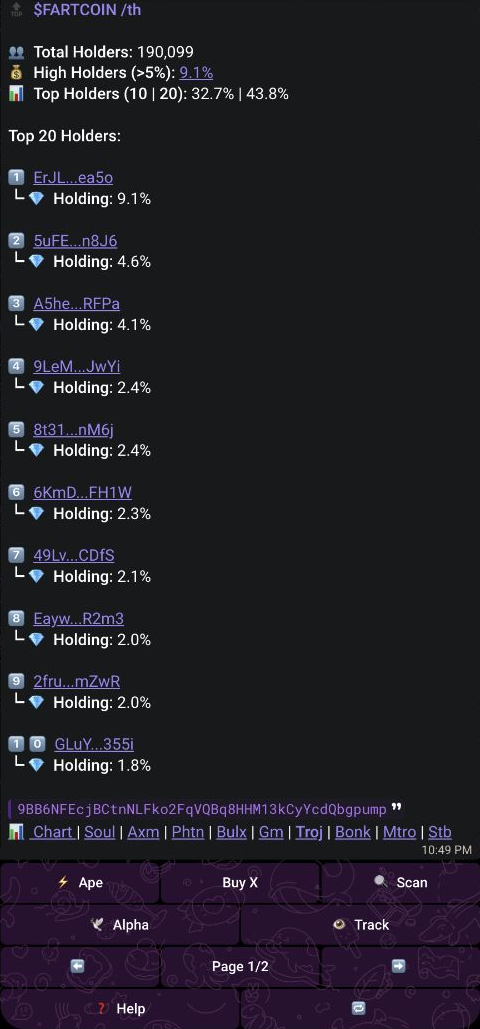
Production Scanner Top Holders card for FARTCOIN showing the summary, ten ranked accounts, page controls, Help and Refresh

What the numbers measure

Total Holders shows the holder count from the main scan. High Holders (>5%) lists individual supply shares above 5%.

Top Holders (10 | 20) shows the summed supply shares of the first 10 and first 20 eligible accounts in the same snapshot, in that order. Each sum uses the accounts returned within its rank range. An empty range or an unavailable share within a range makes that sum unavailable.

Field What it reports
Rank The token account position in the returned snapshot.
Account A shortened token-account address. Select it to open that account on Solscan.
Holding The account balance as a share of compatible token supply. Unavailable means the share could not be calculated.

Holding shows up to one decimal place. A positive share that rounds to zero appears as <0.1%.

A displayed account does not establish a common controller with any other account.

What the numbers cannot tell you

  • A ranked token account is not an owner wallet or a person.
  • Rows are not combined by owner, so one controller can appear through more than one account.
  • Supply shares cannot be added to establish a complete holder population.
  • A missing supply share is unavailable, not zero.
  • A rank or supply share does not establish intent, safety or a trading outcome.

Read the available rows

Use the page controls to see up to 10 accounts at a time from the same snapshot. Select Refresh to request a new snapshot. A successful refresh returns to page one and can change ranks or supply shares. If refresh fails, Scanner keeps the last available page. Select Help to open this explanation in a separate message. The holder result stays on the same page. Wait 30 seconds between Help requests in the same chat. Back to scan appears only when Scanner can return to the originating scan.

Recovery and next step

If no eligible token accounts are returned, do not infer that there are no holders. If supply share is unavailable, read the rank without substituting a zero. If the view cannot load, check the mint address and try again later. Continue with First 20, Bundles and Snipers as separate research context.

Next step

Came from Telegram? Close this page or use Back to return to your original chat and report.

PreviousScanner field glossaryNextBundles

On this page

  1. Goal and prerequisite
  2. Use the command
  3. Find the available Top holders result
  4. Output
  5. What the numbers measure
  6. What the numbers cannot tell you
  7. Read the available rows
  8. Recovery and next step