Keep watch for the event categories you choose. Auto Track sends Scanner alerts for available categories. Setting an alert does not create or execute a trade order.
Use it when a category-level event should bring a token back to your attention. Scanner owns the alert context. Sniper orders are a separate execution task.
Open and save alert settings
- Open @soul_scanner_bot in a direct message, or use a Telegram group where Soul Scanner has been added. Send
/alerts. - In a group, a group administrator must configure the alerts. If you are not an admin, ask one to open
/alerts. - Choose the category you want to change: Dex, CTO, Trending or Bonding.
- Wait for the settings message to redraw, then check the state shown beside that category before you leave.
Check the saved state in the settings message after each change. A green marker means the category is on; a red marker means it is off. If the category still shows the old marker, or the settings message does not redraw, treat the change as unconfirmed and send /alerts again.
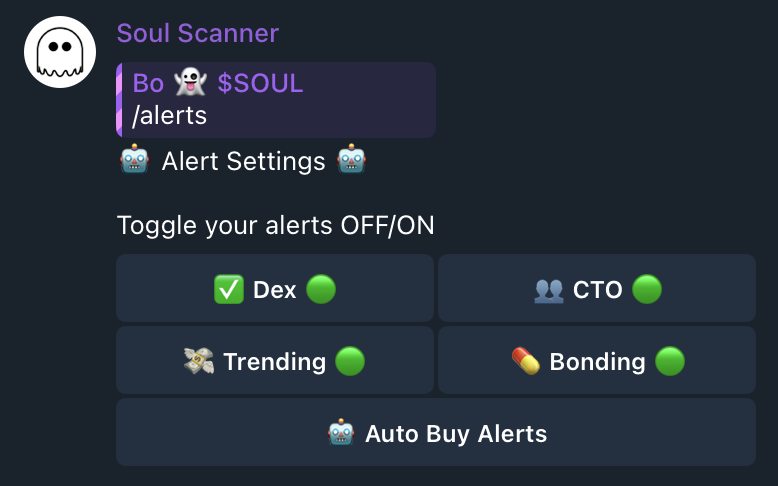
/alerts, then use the current category states in your own settings message as the record of what is on or off.Read an alert before acting
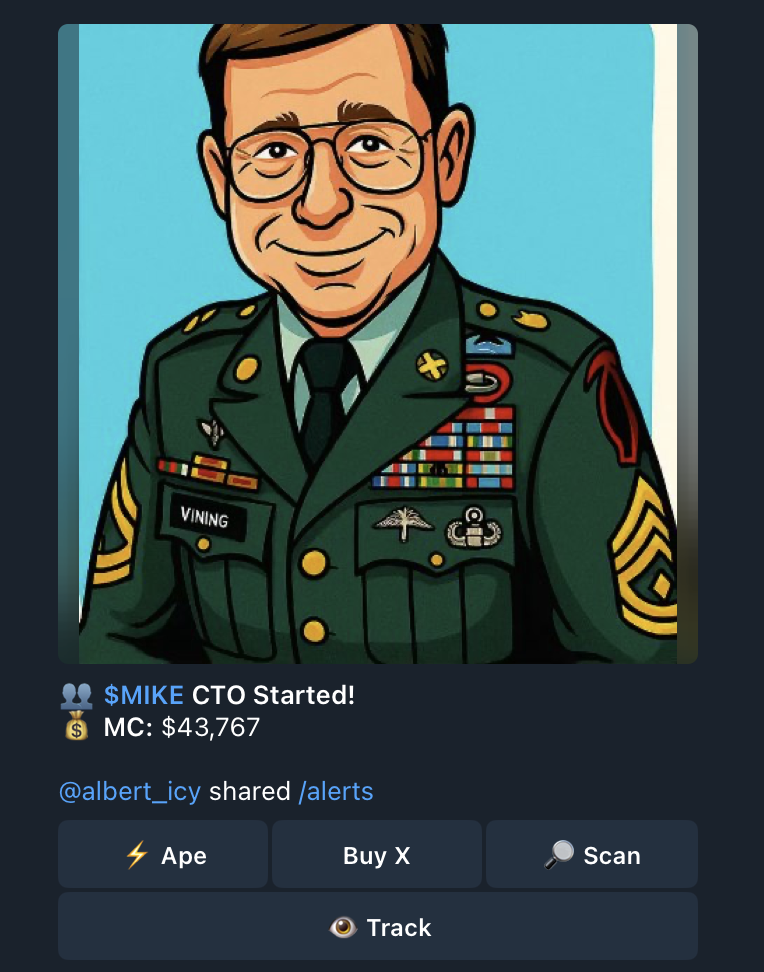
An alert reports the selected event. Confirm the token identity, event label and time in the notification before using it as research context. An alert is not a safety finding and is not a trade outcome.
Related trading automation
Auto Track Orders is a separate Sniper setup with its own wallet and order-status check. Turning an alert category on does not prove that an order exists or executed.
Check your next step
Open the token's Scanner result if you need audit context. Use the separate Sniper flow only if you decide to configure execution.