Skip to documentation content
Soul Terminal

Documentation

⌘ / Ctrl K
Open Terminal

Start here

  • Introduction
  • Products and features

Soul Terminal

  • Feeds, scans and charts

Soul Scanner

  • Scanner overview
  • Scanner guide
    • Start a scan
    • Alerts and warnings
    • Field glossary
    • Fake Holder
    • Fake Volume
    • Bundles
    • Snipers
    • First 20
    • Group Trading
    • Auto Track
    • Trench Track

Soul Trending

  • Soul Trending
    • Early Trending
    • Whale Trending
    • Trench Trending

Soul Sniper

  • Trade with Sniper
    • Limit and auto orders
    • Tracking-linked orders

Share and get help

  • Community
  • Contact
  • Team

Understand limits

  • Terms
  • Disclaimers
    • Trending disclaimer
  • Privacy policies

Interactive guides

  • Interactive Soul guides
    • Interactive Scanner scan guide
    • Soul Scanner command guide
    • Soul Sniper command guide
    • Soul Trending guides
      • Trending basics: What Trending is
        • Trending basics: Recognize the posts
        • Trending basics: From alert to research
        • Trending basics: Your next step
      • Early Trending: Start with Early Trending
        • Early Trending: Read an entry alert
        • Early Trending: Read updates and rankings
        • Early Trending: Your next step
      • Whale Trending: Read the wallet signals
        • Whale Trending: Wallet and Scan
        • Whale Trending: Read updates
        • Whale Trending: Your next step
      • Trench Trending: Start with Trench Trending
        • Trench Trending: Read the entry fields
        • Trench Trending: Read updates
        • Trench Trending: Your next step

Start here

  • Introduction
  • Products and features

Soul Terminal

  • Feeds, scans and charts

Soul Scanner

  • Scanner overview
  • Scanner guide
    • Start a scan
    • Alerts and warnings
    • Field glossary
    • Fake Holder
    • Fake Volume
    • Bundles
    • Snipers
    • First 20
    • Group Trading
    • Auto Track
    • Trench Track

Soul Trending

  • Soul Trending
    • Early Trending
    • Whale Trending
    • Trench Trending

Soul Sniper

  • Trade with Sniper
    • Limit and auto orders
    • Tracking-linked orders

Share and get help

  • Community
  • Contact
  • Team

Understand limits

  • Terms
  • Disclaimers
    • Trending disclaimer
  • Privacy policies

Interactive guides

  • Interactive Soul guides
    • Interactive Scanner scan guide
    • Soul Scanner command guide
    • Soul Sniper command guide
    • Soul Trending guides
      • Trending basics: What Trending is
        • Trending basics: Recognize the posts
        • Trending basics: From alert to research
        • Trending basics: Your next step
      • Early Trending: Start with Early Trending
        • Early Trending: Read an entry alert
        • Early Trending: Read updates and rankings
        • Early Trending: Your next step
      • Whale Trending: Read the wallet signals
        • Whale Trending: Wallet and Scan
        • Whale Trending: Read updates
        • Whale Trending: Your next step
      • Trench Trending: Start with Trench Trending
        • Trench Trending: Read the entry fields
        • Trench Trending: Read updates
        • Trench Trending: Your next step

Ecosystem

Soul Scanner

Understand Scanner's supported audit and monitoring role before choosing a next step.

Soul Scanner puts the token context you need for a closer look in one Telegram result. Use it to check available token, market, holder, activity and deployer context before you decide whether to investigate, monitor, discuss or separately trade a token.

Use Scanner when your job is to turn a token address into an auditable set of questions. Scanner supplies research and monitoring context. Trending can surface an opportunity, and Sniper owns any later execution decision.

A scan does not establish safety, wallet identity, intent, performance or a successful trade. Available fields and chain coverage can differ.
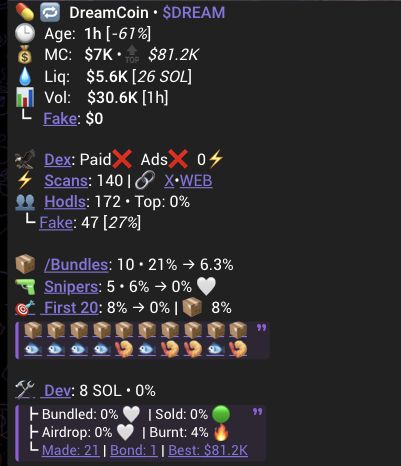
Scanner research result showing available token, market, holder, activity and deployer context.
Start with the token and address. Read the market and holder fields that are available for that chain.

Features

Start with a token address, confirm its identity, read the available context, then choose the next question. Use Scanner for triage, Auto Track or Trench Track for monitoring, and Soul Sniper only for its separate execution flow.

If Scanner does not return a result or field, do not fill in the gap from a similar token. Recheck the full address and chain, then use the recovery guidance in Start a scan.

Current access information

Check the official product surface for current access, availability and supported controls. This page does not state commercial terms.

PreviousSoul TerminalNextSoul Scanner

On this page

  1. Features
  2. Current access information