When you have made your call, make sure the live prompt matches it. Soul Sniper accepts a supported Solana token address in Telegram, shows token context and can offer trading controls.
Soul Sniper does not establish token safety, guarantee a price or fill, or promise a return. For discovery, use Trending. For token research, use Scanner. For a web research view, use Terminal.
Trade one token
- Open the official @soul_sniper_bot and make sure the wallet you mean to use is active and funded.
- Send
/settingsbefore using an amount button. Open Confirm to inspect the separate Confirm Buys, Confirm Sells and Confirm Sell All states. A preset can execute immediately when its confirmation is off. Instant Buy is a separate setting, so check that too before sending a token address. - Send the Solana token address when you are ready for the behavior your settings allow. The token result shows identity and research context.
- If the bot asks for an amount, enter the amount only after you have checked the token address and active wallet. You can cancel an unfinished amount prompt with
/cancel. - Treat every preset amount button as a trade action. Depending on your confirmation setting, it can start a trade immediately. Check the token, active wallet, buy or sell direction and amount before tapping it.
- If a confirmation appears, check the side, amount, token and contract address again. Choose Confirm trade only when they match your decision, or Cancel to stop. Wait for the bot's response, then reopen the token or position result to check the outcome.
The bot validates available balance before a buy. A missing, wrong or unclear wallet, token, direction or amount is a reason to stop at the current prompt instead of submitting another request.
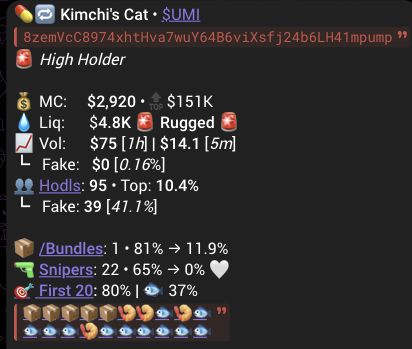
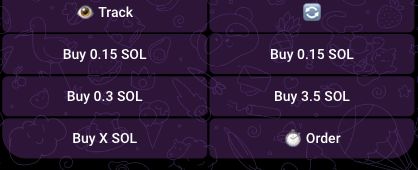
Check the prompt before you act
The research result helps you identify the token. Review the active wallet, action, amount and fee settings before authorizing a trade. Before activating an amount control, check the contract address, the active wallet, whether the action is a buy or sell, and the amount. If a confirmation prompt appears, check its confirmation control too. Do not rely on a token name or forwarded message alone.
Quick terms
Slippage: the price movement you are willing to accept in a supported trade flow.
Fee / Priority Fee: a displayed fee setting or estimate. It does not guarantee a final cost or transaction inclusion.
Take-profit / stop-loss: an optional future sell setting where the current bot offers it. A saved setting is not a completed sale.
Order status: the bot's current state for a saved or submitted action. A saved setting, submitted request, pending request, failed request and completed transaction are different states. Check an actual transaction or position result separately when a trigger happens.
Wallet balance: the balance shown for the active Sniper wallet. Confirm it before moving funds or authorizing an action. Missing data is not zero.
Continue from the right flow
Use Orders for current take-profit or stop-loss controls. Use Tracking-linked Orders only when you are connecting a Sniper order to a Scanner Auto Track category or Trench Track condition.
If a control is unavailable, access is ineligible, funding is insufficient or status is unclear, return to the current token or order view and check again. Use Contact if the route remains unavailable.