Skip to documentation content
Soul Terminal

Documentation

Open Terminal

Start here

  • Introduction
  • Products and features

Soul Terminal

  • Feeds, scans and charts

Soul Scanner

  • Scanner overview
  • Scanner guide
    • Start a scan
    • Alerts and warnings
    • Field glossary
    • Fake Holder
    • Fake Volume
    • Bundles
    • Snipers
    • First 20
    • Group Trading
    • Auto Track
    • Trench Track

Soul Trending

  • Soul Trending
    • Early Trending
    • Whale Trending
    • Trench Trending

Soul Sniper

  • Trade with Sniper
    • Limit and auto orders
    • Tracking-linked orders

Share and get help

  • Community
  • Contact
  • Team

Understand limits

  • Terms
  • Disclaimers
    • Trending disclaimer
  • Privacy policies

Interactive guides

  • Interactive Soul guides
    • Interactive Scanner scan guide
    • Soul Scanner command guide
    • Soul Sniper command guide
    • Soul Trending guides
      • Trending basics: What Trending is
        • Trending basics: Recognize the posts
        • Trending basics: From alert to research
        • Trending basics: Your next step
      • Early Trending: Start with Early Trending
        • Early Trending: Read an entry alert
        • Early Trending: Read updates and rankings
        • Early Trending: Your next step
      • Whale Trending: Read the wallet signals
        • Whale Trending: Wallet and Scan
        • Whale Trending: Read updates
        • Whale Trending: Your next step
      • Trench Trending: Start with Trench Trending
        • Trench Trending: Read the entry fields
        • Trench Trending: Read updates
        • Trench Trending: Your next step

Start here

  • Introduction
  • Products and features

Soul Terminal

  • Feeds, scans and charts

Soul Scanner

  • Scanner overview
  • Scanner guide
    • Start a scan
    • Alerts and warnings
    • Field glossary
    • Fake Holder
    • Fake Volume
    • Bundles
    • Snipers
    • First 20
    • Group Trading
    • Auto Track
    • Trench Track

Soul Trending

  • Soul Trending
    • Early Trending
    • Whale Trending
    • Trench Trending

Soul Sniper

  • Trade with Sniper
    • Limit and auto orders
    • Tracking-linked orders

Share and get help

  • Community
  • Contact
  • Team

Understand limits

  • Terms
  • Disclaimers
    • Trending disclaimer
  • Privacy policies

Interactive guides

  • Interactive Soul guides
    • Interactive Scanner scan guide
    • Soul Scanner command guide
    • Soul Sniper command guide
    • Soul Trending guides
      • Trending basics: What Trending is
        • Trending basics: Recognize the posts
        • Trending basics: From alert to research
        • Trending basics: Your next step
      • Early Trending: Start with Early Trending
        • Early Trending: Read an entry alert
        • Early Trending: Read updates and rankings
        • Early Trending: Your next step
      • Whale Trending: Read the wallet signals
        • Whale Trending: Wallet and Scan
        • Whale Trending: Read updates
        • Whale Trending: Your next step
      • Trench Trending: Start with Trench Trending
        • Trench Trending: Read the entry fields
        • Trench Trending: Read updates
        • Trench Trending: Your next step
←HomeChoose guide
Step 2 of 4
Whale Trending
Read the wallet signals
Wallet and Scan
Read updates
Your next step
Next up: Read updates

Whale Trending: Wallet and Scan

Whale Trending lesson

Separate wallet context from the purchase

A wallet balance and a purchase amount answer different questions. Read the alert first, then use a scan for additional details and the contract address.

Wallet balance

A balance describes funds held by a wallet at the relevant displayed context. It does not by itself state how much was purchased.

Purchase amount

A purchase amount describes the transaction amount shown in the alert. Do not substitute it for the wallet balance.

Safe reading order

  1. Read the alert and identify the token reference.
  2. On the original WT entry post, select Scan in the action row below the post for additional details and the contract address (CA).
  3. Verify the token address and chain before following any next step.
  4. Use CHART in Terminal only after that verification.
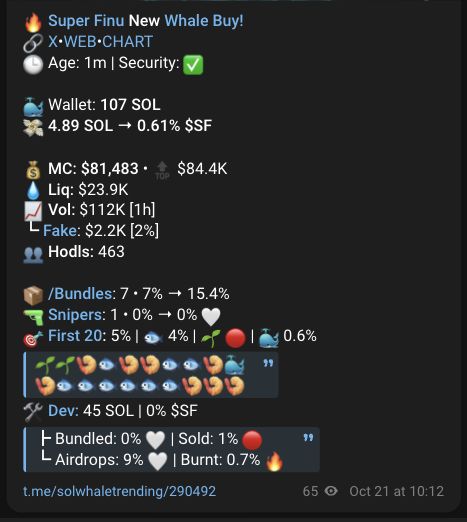
Historical Whale Trending Entry alert for wallet-reading practiceOpen full-size historical image ↗
Historical example only. After confirming the fields visible in this capture, Wallet is 107 SOL and the displayed purchase is 4.89 SOL. Those are different values in this historical image, not current data. This capture does not show the action row; use Scan on the current entry post.

Practice check

In the historical example, which value is the displayed purchase amount: 107 SOL or 4.89 SOL?

Show feedbackThe displayed purchase amount is 4.89 SOL. Wallet 107 SOL is the wallet-balance field in that historical capture.
Next up: Read updates
Step 2 of 4