Use the monitoring input you chose as the starting point for a personal Sniper order. Check the event or token, active wallet and amount before you save.
Tracking-linked orders are optional personal Sniper settings that start from Scanner. Scanner alerts and conditions do not create a personal order by themselves.
Use this page only after you have chosen the monitoring input in Scanner. It connects that input to a separately reviewed Sniper order setting.
| Start from | It applies to | What you configure in Sniper |
|---|---|---|
| Auto Track | One event category for your account | A personal buy amount for that category. |
| Trench Track | One condition for one token | A buy or sell configuration for that token condition. |
Auto Track orders
Configure a category order
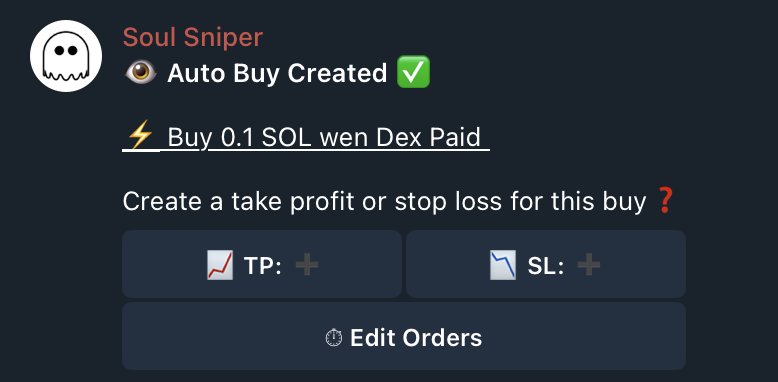
- Start from your private Scanner tracking setup and select the Auto Track category shown there. Continue only if that setup offers an Auto Buy action.
- Continue into Soul Sniper with an active, funded wallet.
- Check the event category and wallet, then enter the requested buy amount.
- Review the saved configuration and later check the actual transaction result if an event occurs.
If the category or wallet is not the one you expected, return to Scanner's current Auto Track setup before you submit an amount.

Trench Track orders
Configure a token-condition order
- Create and review the token condition in Scanner. Check the token, threshold and destination. Check any expiry shown by the current setup; do not assume a fixed active window.
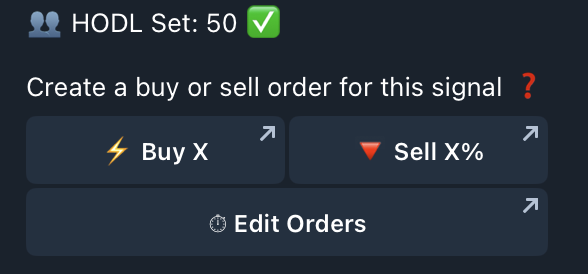
- Choose an available Buy or Sell action and continue into Soul Sniper.
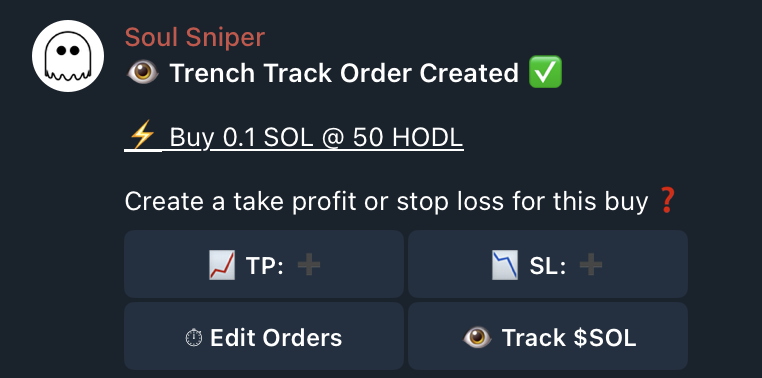
- Check the token and active wallet. Enter the requested buy amount or sell percentage.
- Review the saved order beside the condition. Check the buy amount or sell percentage against the condition value. If the condition fires, check the transaction result separately.
If the token, condition or wallet is wrong, return to the current Scanner condition before you submit another request.

Review the saved category order
| Check | Auto Track order | Trench Track order |
|---|---|---|
| Scope | Event category | One token condition |
| Context | Category and active wallet | Token, condition and active wallet |
| Result | Saved setting first, transaction result later | Saved setting first, transaction result later |
If the category, token, amount or condition is wrong, return to the current setup before you submit another request.
To stop a saved Trench Track order, open its order view and use the cancellation control. For an Auto Track category order, use the cancellation prompt for that category when the bot shows it. Check the Order Cancelled response and the saved state before creating a replacement. Stopping a personal order does not establish that the Scanner monitoring input was removed. Check Scanner separately if you also want to change monitoring.
If cancellation or the resulting state is unclear, use Contact. Do not submit a replacement while you are unsure whether the earlier order is active.