Skip to documentation content
Soul Terminal

Documentation

Open Terminal

Start here

  • Introduction
  • Products and features

Soul Terminal

  • Feeds, scans and charts

Soul Scanner

  • Scanner overview
  • Scanner guide
    • Start a scan
    • Alerts and warnings
    • Field glossary
    • Fake Holder
    • Fake Volume
    • Bundles
    • Snipers
    • First 20
    • Group Trading
    • Auto Track
    • Trench Track

Soul Trending

  • Soul Trending
    • Early Trending
    • Whale Trending
    • Trench Trending

Soul Sniper

  • Trade with Sniper
    • Limit and auto orders
    • Tracking-linked orders

Share and get help

  • Community
  • Contact
  • Team

Understand limits

  • Terms
  • Disclaimers
    • Trending disclaimer
  • Privacy policies

Interactive guides

  • Interactive Soul guides
    • Interactive Scanner scan guide
    • Soul Scanner command guide
    • Soul Sniper command guide
    • Soul Trending guides
      • Trending basics: What Trending is
        • Trending basics: Recognize the posts
        • Trending basics: From alert to research
        • Trending basics: Your next step
      • Early Trending: Start with Early Trending
        • Early Trending: Read an entry alert
        • Early Trending: Read updates and rankings
        • Early Trending: Your next step
      • Whale Trending: Read the wallet signals
        • Whale Trending: Wallet and Scan
        • Whale Trending: Read updates
        • Whale Trending: Your next step
      • Trench Trending: Start with Trench Trending
        • Trench Trending: Read the entry fields
        • Trench Trending: Read updates
        • Trench Trending: Your next step

Start here

  • Introduction
  • Products and features

Soul Terminal

  • Feeds, scans and charts

Soul Scanner

  • Scanner overview
  • Scanner guide
    • Start a scan
    • Alerts and warnings
    • Field glossary
    • Fake Holder
    • Fake Volume
    • Bundles
    • Snipers
    • First 20
    • Group Trading
    • Auto Track
    • Trench Track

Soul Trending

  • Soul Trending
    • Early Trending
    • Whale Trending
    • Trench Trending

Soul Sniper

  • Trade with Sniper
    • Limit and auto orders
    • Tracking-linked orders

Share and get help

  • Community
  • Contact
  • Team

Understand limits

  • Terms
  • Disclaimers
    • Trending disclaimer
  • Privacy policies

Interactive guides

  • Interactive Soul guides
    • Interactive Scanner scan guide
    • Soul Scanner command guide
    • Soul Sniper command guide
    • Soul Trending guides
      • Trending basics: What Trending is
        • Trending basics: Recognize the posts
        • Trending basics: From alert to research
        • Trending basics: Your next step
      • Early Trending: Start with Early Trending
        • Early Trending: Read an entry alert
        • Early Trending: Read updates and rankings
        • Early Trending: Your next step
      • Whale Trending: Read the wallet signals
        • Whale Trending: Wallet and Scan
        • Whale Trending: Read updates
        • Whale Trending: Your next step
      • Trench Trending: Start with Trench Trending
        • Trench Trending: Read the entry fields
        • Trench Trending: Read updates
        • Trench Trending: Your next step
←HomeChoose guide
Step 1 of 4
Whale Trending
Read the wallet signals
Wallet and Scan
Read updates
Your next step
Next up: Wallet and Scan

Whale Trending: Read the wallet signals

Whale Trending lesson

Read the signal sequence

Whale Trending reports qualifying wallet buys. Its signal labels explain whether a wallet is entering the recorded sequence, joining another wallet, or buying again.

These historical captures illustrate different tokens and are not one sequence. They are practice material, not live alerts or a recommendation to act.

1. Entry

Entry is the first qualifying wallet buy in the recorded WT sequence.

2. Confluence

Confluence is another qualifying wallet buying that same token.

3. Accumulation

Accumulation is a wallet already in that sequence buying again.
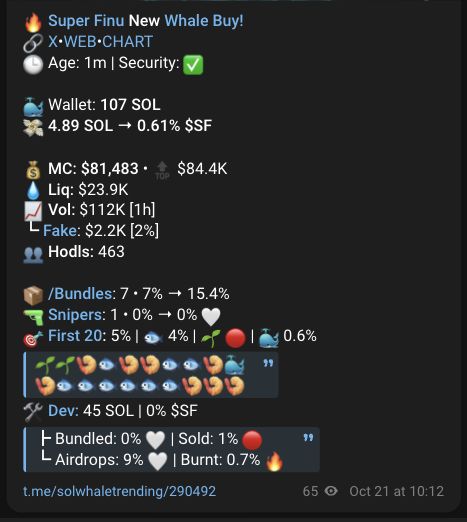
Historical Whale Trending Entry exampleOpen full-size historical image ↗
Historical Entry example for one token. Open the full-size image to inspect the original layout.
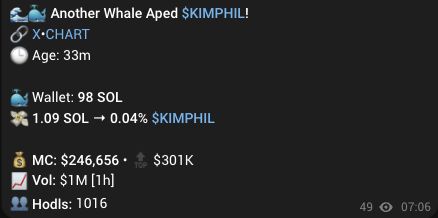
Historical Whale Trending Confluence exampleOpen full-size historical image ↗
Historical Confluence example for a different token. It is not the follow-up to the Entry capture above.
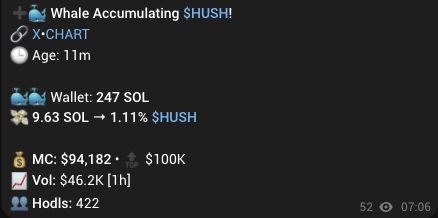
Historical Whale Trending Accumulation exampleOpen full-size historical image ↗
Historical Accumulation example for another token. It is not part of either capture above.

Practice check

Which message should you use as the reference point when checking a later Confluence or Accumulation alert?

Show feedbackUse the Entry for the same token, then compare its token reference and alert context with the later message.
Next up: Wallet and Scan
Step 1 of 4