Skip to documentation content
Soul Terminal

Documentation

⌘ / Ctrl K
Open Terminal

Start here

  • Introduction
  • Products and features

Soul Terminal

  • Feeds, scans and charts

Soul Scanner

  • Scanner overview
  • Scanner guide
    • Start a scan
    • Alerts and warnings
    • Field glossary
    • Fake Holder
    • Fake Volume
    • Bundles
    • Snipers
    • First 20
    • Group Trading
    • Auto Track
    • Trench Track

Soul Trending

  • Soul Trending
    • Early Trending
    • Whale Trending
    • Trench Trending

Soul Sniper

  • Trade with Sniper
    • Limit and auto orders
    • Tracking-linked orders

Share and get help

  • Community
  • Contact
  • Team

Understand limits

  • Terms
  • Disclaimers
    • Trending disclaimer
  • Privacy policies

Interactive guides

  • Interactive Soul guides
    • Interactive Scanner scan guide
    • Soul Scanner command guide
    • Soul Sniper command guide
    • Soul Trending guides
      • Trending basics: What Trending is
        • Trending basics: Recognize the posts
        • Trending basics: From alert to research
        • Trending basics: Your next step
      • Early Trending: Start with Early Trending
        • Early Trending: Read an entry alert
        • Early Trending: Read updates and rankings
        • Early Trending: Your next step
      • Whale Trending: Read the wallet signals
        • Whale Trending: Wallet and Scan
        • Whale Trending: Read updates
        • Whale Trending: Your next step
      • Trench Trending: Start with Trench Trending
        • Trench Trending: Read the entry fields
        • Trench Trending: Read updates
        • Trench Trending: Your next step

Start here

  • Introduction
  • Products and features

Soul Terminal

  • Feeds, scans and charts

Soul Scanner

  • Scanner overview
  • Scanner guide
    • Start a scan
    • Alerts and warnings
    • Field glossary
    • Fake Holder
    • Fake Volume
    • Bundles
    • Snipers
    • First 20
    • Group Trading
    • Auto Track
    • Trench Track

Soul Trending

  • Soul Trending
    • Early Trending
    • Whale Trending
    • Trench Trending

Soul Sniper

  • Trade with Sniper
    • Limit and auto orders
    • Tracking-linked orders

Share and get help

  • Community
  • Contact
  • Team

Understand limits

  • Terms
  • Disclaimers
    • Trending disclaimer
  • Privacy policies

Interactive guides

  • Interactive Soul guides
    • Interactive Scanner scan guide
    • Soul Scanner command guide
    • Soul Sniper command guide
    • Soul Trending guides
      • Trending basics: What Trending is
        • Trending basics: Recognize the posts
        • Trending basics: From alert to research
        • Trending basics: Your next step
      • Early Trending: Start with Early Trending
        • Early Trending: Read an entry alert
        • Early Trending: Read updates and rankings
        • Early Trending: Your next step
      • Whale Trending: Read the wallet signals
        • Whale Trending: Wallet and Scan
        • Whale Trending: Read updates
        • Whale Trending: Your next step
      • Trench Trending: Start with Trench Trending
        • Trench Trending: Read the entry fields
        • Trench Trending: Read updates
        • Trench Trending: Your next step

User Guides

Start a scan

Submit a supported token address to Scanner in a direct message or an available group, then verify the returned asset.

Paste a supported token address into Scanner when you want to turn a token lead into a checkable result. The direct-message flow shown here uses a Solana address. Other chains can have different support and fields.

The outcome is a checked starting point for research, not a verdict on the token. Continue to the Scanner guide to interpret returned context, or use monitoring only after you know what change you want to follow. Scanner does not execute a trade. Soul Sniper is the separate product for an execution flow.

Scan Contract in DM

  1. Open Soul Scanner.
  2. Select Start if Telegram asks.
  3. Send the complete supported token address.
  4. Confirm that the returned address and chain match the intended token.
  5. Read the returned context with the Scanner guide.

If the returned name resembles the token you expected but the address differs, stop at the address check and do not read the result as the intended token.
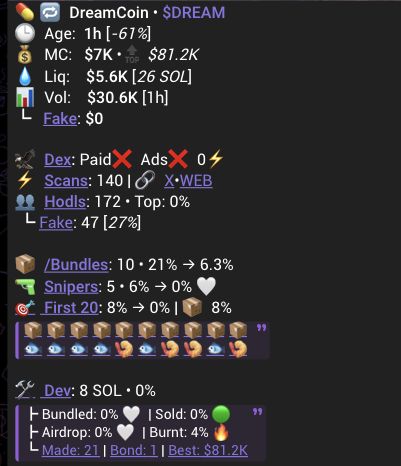
Scanner research result showing a returned token name, market, holder, activity and deployer fields.
Verify the complete address in the reply before interpreting the fields.

Scan Contracts Directly in Your Group

First confirm that Scanner is available in the group. Then send the complete token address and verify the returned address and chain as you would in a direct message. If Scanner is not available, ask a group administrator to add or manage it, or use the direct-message flow. This guide does not assume a particular Telegram permission or group configuration.

Group scans support shared research. They do not show group agreement with a result, establish token safety or submit a trade.

Change Language

Use the current bot language control when it is available. If a setting is missing, do not infer that the reply changed language or that the feature is unavailable in every context.

If you cannot complete a scan

Check the exact address, chain and chat. Try a direct message if the group route is unavailable. Treat a missing field or failed reply as unresolved, then use Contact with the address and what happened.

PreviousSoul ScannerNextAlerts and Warnings

On this page

  1. Scan Contract in DM
  2. Scan Contracts Directly in Your Group
  3. Change Language
  4. If you cannot complete a scan