Skip to documentation content
Soul Terminal

Documentation

⌘ / Ctrl K
Open Terminal

Start here

  • Introduction
  • Products and features

Soul Terminal

  • Feeds, scans and charts

Soul Scanner

  • Scanner overview
  • Scanner guide
    • Start a scan
    • Alerts and warnings
    • Field glossary
    • Fake Holder
    • Fake Volume
    • Bundles
    • Snipers
    • First 20
    • Group Trading
    • Auto Track
    • Trench Track

Soul Trending

  • Soul Trending
    • Early Trending
    • Whale Trending
    • Trench Trending

Soul Sniper

  • Trade with Sniper
    • Limit and auto orders
    • Tracking-linked orders

Share and get help

  • Community
  • Contact
  • Team

Understand limits

  • Terms
  • Disclaimers
    • Trending disclaimer
  • Privacy policies

Interactive guides

  • Interactive Soul guides
    • Interactive Scanner scan guide
    • Soul Scanner command guide
    • Soul Sniper command guide
    • Soul Trending guides
      • Trending basics: What Trending is
        • Trending basics: Recognize the posts
        • Trending basics: From alert to research
        • Trending basics: Your next step
      • Early Trending: Start with Early Trending
        • Early Trending: Read an entry alert
        • Early Trending: Read updates and rankings
        • Early Trending: Your next step
      • Whale Trending: Read the wallet signals
        • Whale Trending: Wallet and Scan
        • Whale Trending: Read updates
        • Whale Trending: Your next step
      • Trench Trending: Start with Trench Trending
        • Trench Trending: Read the entry fields
        • Trench Trending: Read updates
        • Trench Trending: Your next step

Start here

  • Introduction
  • Products and features

Soul Terminal

  • Feeds, scans and charts

Soul Scanner

  • Scanner overview
  • Scanner guide
    • Start a scan
    • Alerts and warnings
    • Field glossary
    • Fake Holder
    • Fake Volume
    • Bundles
    • Snipers
    • First 20
    • Group Trading
    • Auto Track
    • Trench Track

Soul Trending

  • Soul Trending
    • Early Trending
    • Whale Trending
    • Trench Trending

Soul Sniper

  • Trade with Sniper
    • Limit and auto orders
    • Tracking-linked orders

Share and get help

  • Community
  • Contact
  • Team

Understand limits

  • Terms
  • Disclaimers
    • Trending disclaimer
  • Privacy policies

Interactive guides

  • Interactive Soul guides
    • Interactive Scanner scan guide
    • Soul Scanner command guide
    • Soul Sniper command guide
    • Soul Trending guides
      • Trending basics: What Trending is
        • Trending basics: Recognize the posts
        • Trending basics: From alert to research
        • Trending basics: Your next step
      • Early Trending: Start with Early Trending
        • Early Trending: Read an entry alert
        • Early Trending: Read updates and rankings
        • Early Trending: Your next step
      • Whale Trending: Read the wallet signals
        • Whale Trending: Wallet and Scan
        • Whale Trending: Read updates
        • Whale Trending: Your next step
      • Trench Trending: Start with Trench Trending
        • Trench Trending: Read the entry fields
        • Trench Trending: Read updates
        • Trench Trending: Your next step

User Guides

Alerts and Warnings

Interpret Scanner alerts as research prompts, with Solana-specific context and explicit uncertainty.

A warning tells you where to look more closely. Match it to the token and the field it describes, then check the surrounding liquidity, holders and activity. The label alone does not prove fraud or make a token safe.

This page helps you turn a label into a checkable question. After reading it in context, continue the audit in Scanner or monitor a relevant condition. Do not treat the label as a Sniper execution signal.

Placement

Confirm the returned asset first. In the illustrated Solana layout, alerts and callouts appear together near the start of a result when present. Other chains and layouts can differ.
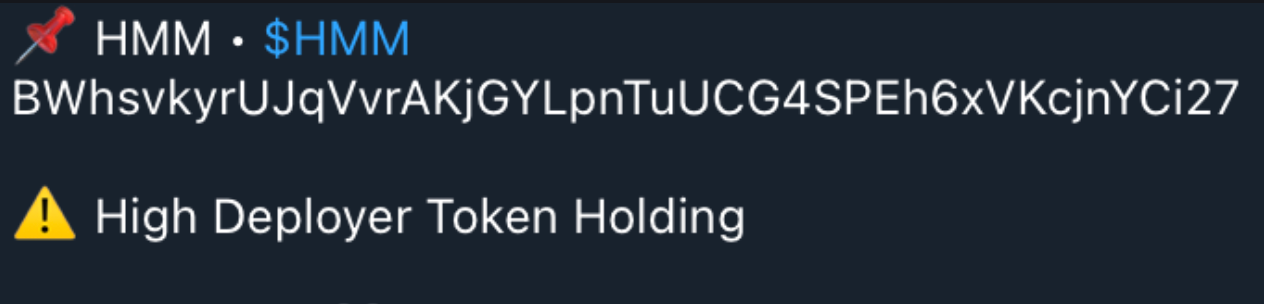
Scanner result showing the token identity, address and a High Deployer Token Holding warning near the start of the card.
Check the token identity, then find the warning near the start of the scan.
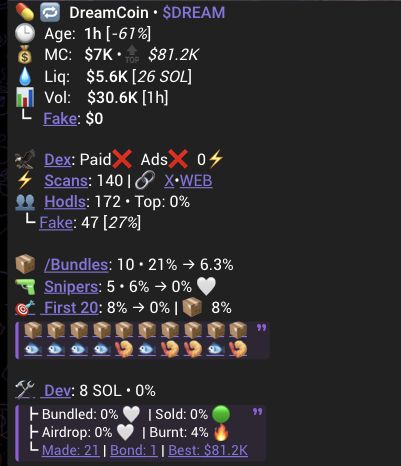
Scanner research result showing the surrounding market, holder, activity and deployer context used to investigate a label.
Read a label beside its surrounding context, then check an important finding against an independent source.

Interpret a label

Read the label with its underlying field, then compare it with available liquidity, holder, deployer and activity context. If a field or warning is absent, treat it as unavailable rather than safe.

If you cannot find the field named by a label in the current result, keep the label unconfirmed and return to the token and chain check before relying on it.

Visual Representation

The illustrated Solana convention uses alert and warning symbols. Current presentation can differ, so this guide states the meaning in text.

Possible Values

Mint Authority

An enabled mint authority can permit additional supply. A deployer mint authority is separate from a deployer holding field.

LP Status

In Solana scans, Low Liquidity is shown below $1,250, with alert presentation below $500. A liquidity label does not independently prove LP removal or fraud.

LP burn status

The LP callout reports the burn status of liquidity-pool tokens. These tokens represent a pool position; burning them removes the ability to redeem that position using those tokens. The percentage beside Burnt refers to LP tokens, not the token's circulating supply or the USD value of liquidity.

For example, LP: 100% Burnt is an illustrative label for a fully burned LP-token position. Read it alongside current liquidity and the specific pool. It does not establish that every pool is locked, that liquidity will remain available, or that the token is safe.

When the required burn data is unavailable, the burn callout can be absent. An absent callout is unknown, not 0% Burnt. A Rugged callout is a separate liquidity-based label; it does not independently prove that LP was removed.

Initial LP ratio

iLP means initial liquidity-pool ratio: the percentage of token supply initially placed in the pool. For supported Solana pools, it compares the initial base-token amount with total token supply, multiplied by 100. It is distinct from LP-token burn percentage and current liquidity.

For example, iLP: 80% • 100% Burnt is an illustrative combination: 80% describes the initial share of token supply placed in the pool, while 100% describes LP-token burn status. It does not mean that 80% of the original liquidity remains or that 80% of LP tokens were burned.

Scanner can show iLP when the reported ratio is below 100%; otherwise the same callout can use LP. Chain, pool type and source availability can change which fields appear. If the initial ratio is missing, do not infer 0% or 100% from the label. Check the specific pool and returned data before relying on it.

Holder Information

High Top Ten and High Holder labels report concentration thresholds in the Solana renderer. They are context, not conclusions about intent.

Deployer Information

Deployer holding and LP labels are reported signals. Bundle or developer-related labels summarize detector output and do not independently prove ownership or self-sniping.

Recovery and next step

Open the related Glossary, inspect the underlying field, and compare an important claim with an independent source.

PreviousStart a scanNextScanner field glossary

On this page

  1. Placement
  2. Interpret a label
  3. Visual Representation
  4. Possible Values
  5. Mint Authority
  6. LP Status
  7. LP burn status
  8. Initial LP ratio
  9. Holder Information
  10. Deployer Information
  11. Recovery and next step