Set the trigger you intend, then keep its status in view. Use an order when the current Soul Sniper flow offers a future take-profit or stop-loss action for a supported position.
An order saves instructions for a future event. It does not prove that a sale will happen at a particular price or time.
This page covers direct token-specific order controls. It does not configure Scanner alerts or a Scanner tracking condition.
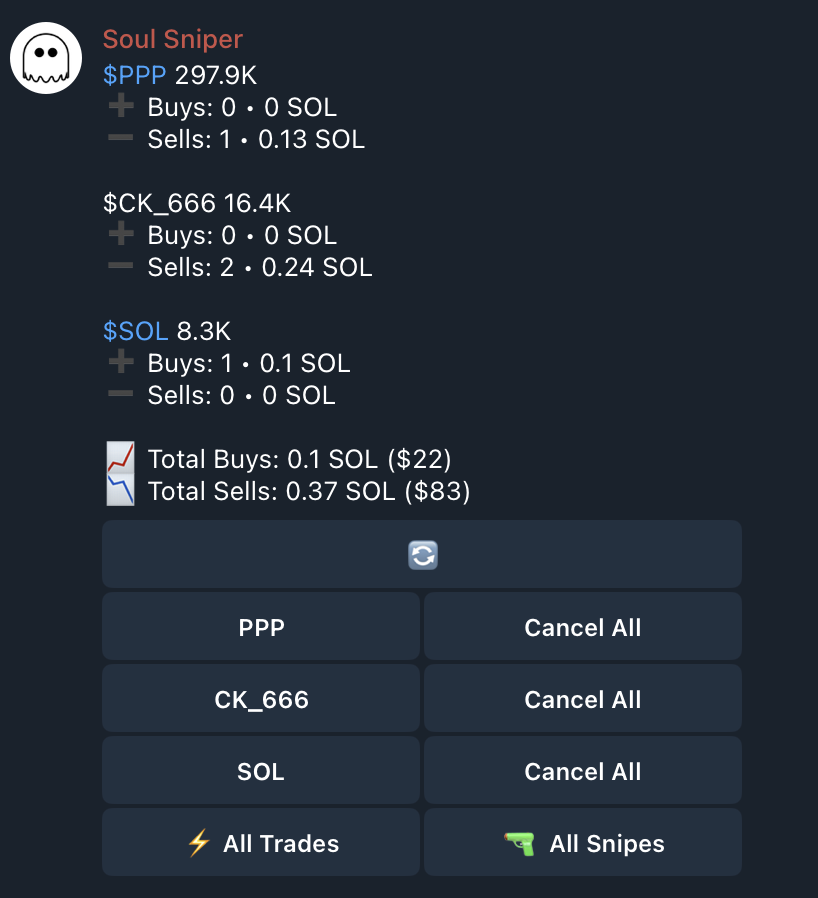
Limit orders
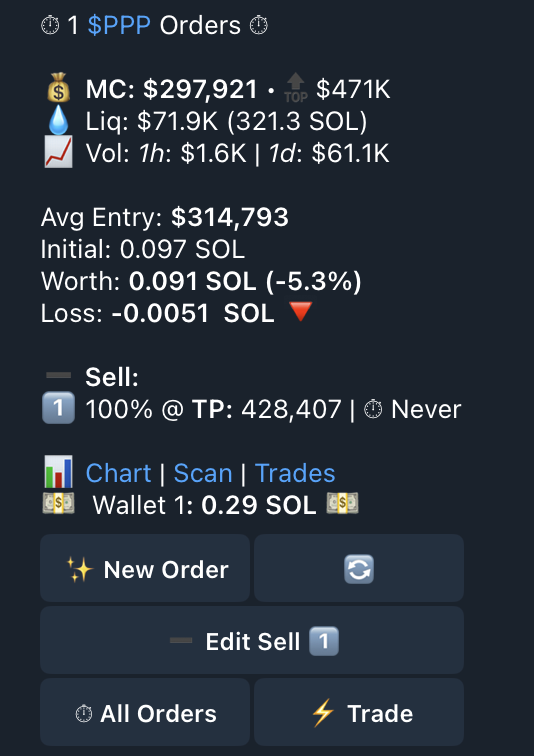
Set a take-profit or stop-loss
- Open the official bot with the correct wallet and position in view.
- Choose the take-profit or stop-loss control offered for that token.
- Enter the sell percentage and the trigger format named by the prompt. The percentage to sell and the trigger are separate inputs.
- If the manual flow asks for expiry, enter 0 for Never or the requested HH:MM value. Other order controls may not ask for expiry.
- Check the token, position, sell percentage, trigger and any expiry before saving.
- Read the returned status and expiry, then check a transaction result separately if the trigger occurs.
The manual trigger prompt can accept market cap, percentage change or an X multiple. Examples of formats are 100k, 50%, -50% and 2.5x. Follow the format named by your prompt and check its returned target. These examples explain inputs; they do not recommend a trade or guarantee a fill price.
If the bot does not show the expected order control or rejects an input, return to the current token or order view. Confirm the active wallet and position before changing another value.
Choose an order flow
Use this page for token-specific take-profit or stop-loss settings. Use Tracking-linked Orders for either of these different jobs:
- A personal buy amount for one Scanner Auto Track event category.
- A buy or sell configuration attached to one Scanner Trench Track condition.
Before saving
- Check the active wallet and token that the setting applies to.
- Check the direction and requested amount or percentage.
- Review the displayed trigger and any fee or authorization prompt.
- Save only after the current prompt reflects your intended action.
Verify and recover
To cancel an unwanted direct order, return to its order view and use the cancellation control. Check the token and read the returned cancellation result before creating a replacement. If the result is unclear, check the order state again or contact support. Cancellation cannot undo an already completed transaction.
A confirmation can mean that a setting was saved. It does not mean that the trigger occurred or that a transaction completed. If a control is absent, a value is rejected or status is unclear, do not resubmit. Return to the current order view, then use Contact if the route remains unavailable.