Skip to documentation content
Soul Terminal

Documentation

⌘ / Ctrl K
Open Terminal

Start here

  • Introduction
  • Products and features

Soul Terminal

  • Feeds, scans and charts

Soul Scanner

  • Scanner overview
  • Scanner guide
    • Start a scan
    • Alerts and warnings
    • Field glossary
    • Fake Holder
    • Fake Volume
    • Bundles
    • Snipers
    • First 20
    • Group Trading
    • Auto Track
    • Trench Track

Soul Trending

  • Soul Trending
    • Early Trending
    • Whale Trending
    • Trench Trending

Soul Sniper

  • Trade with Sniper
    • Limit and auto orders
    • Tracking-linked orders

Share and get help

  • Community
  • Contact
  • Team

Understand limits

  • Terms
  • Disclaimers
    • Trending disclaimer
  • Privacy policies

Interactive guides

  • Interactive Soul guides
    • Interactive Scanner scan guide
    • Soul Scanner command guide
    • Soul Sniper command guide
    • Soul Trending guides
      • Trending basics: What Trending is
        • Trending basics: Recognize the posts
        • Trending basics: From alert to research
        • Trending basics: Your next step
      • Early Trending: Start with Early Trending
        • Early Trending: Read an entry alert
        • Early Trending: Read updates and rankings
        • Early Trending: Your next step
      • Whale Trending: Read the wallet signals
        • Whale Trending: Wallet and Scan
        • Whale Trending: Read updates
        • Whale Trending: Your next step
      • Trench Trending: Start with Trench Trending
        • Trench Trending: Read the entry fields
        • Trench Trending: Read updates
        • Trench Trending: Your next step

Start here

  • Introduction
  • Products and features

Soul Terminal

  • Feeds, scans and charts

Soul Scanner

  • Scanner overview
  • Scanner guide
    • Start a scan
    • Alerts and warnings
    • Field glossary
    • Fake Holder
    • Fake Volume
    • Bundles
    • Snipers
    • First 20
    • Group Trading
    • Auto Track
    • Trench Track

Soul Trending

  • Soul Trending
    • Early Trending
    • Whale Trending
    • Trench Trending

Soul Sniper

  • Trade with Sniper
    • Limit and auto orders
    • Tracking-linked orders

Share and get help

  • Community
  • Contact
  • Team

Understand limits

  • Terms
  • Disclaimers
    • Trending disclaimer
  • Privacy policies

Interactive guides

  • Interactive Soul guides
    • Interactive Scanner scan guide
    • Soul Scanner command guide
    • Soul Sniper command guide
    • Soul Trending guides
      • Trending basics: What Trending is
        • Trending basics: Recognize the posts
        • Trending basics: From alert to research
        • Trending basics: Your next step
      • Early Trending: Start with Early Trending
        • Early Trending: Read an entry alert
        • Early Trending: Read updates and rankings
        • Early Trending: Your next step
      • Whale Trending: Read the wallet signals
        • Whale Trending: Wallet and Scan
        • Whale Trending: Read updates
        • Whale Trending: Your next step
      • Trench Trending: Start with Trench Trending
        • Trench Trending: Read the entry fields
        • Trench Trending: Read updates
        • Trench Trending: Your next step

User Guides

Fake Holder

Read the Fake Holder count and percentage, understand their limits, and work through one Scanner result.

Read Fake beside Hodls to understand the reported flagged-address count and its percentage. Confirm the token and chain first. This explanation covers the Solana result shown below. Availability and presentation can vary by chain.

What it measures

In Fake: X [Y%], X is the number of recorded addresses flagged for that token. Y% is that count divided by the Hodls count returned with the scan, multiplied by 100 and rounded for display. It is a percentage of the reported holder count, not token supply.

Read the count alongside the other holder information in the same result. The count alone does not list the flagged addresses or explain individual flags.

Availability and update timing can vary. The returned values are not guaranteed to describe the same instant.

What it cannot tell you

Fake is a detector label, not a verdict. A flag does not establish that an address belongs to a bot, shares an owner with another address, or is acting deceptively. The number does not identify people or show how much supply the flagged addresses hold.

An absent row is not a reported zero. If either the count or percentage is unavailable, keep it unknown. Do not reconstruct a missing count from a rounded percentage.

A displayed count does not establish complete coverage or a live, synchronized snapshot. Subtracting it from Hodls does not prove how many independent people or genuine buyers remain.

One worked example
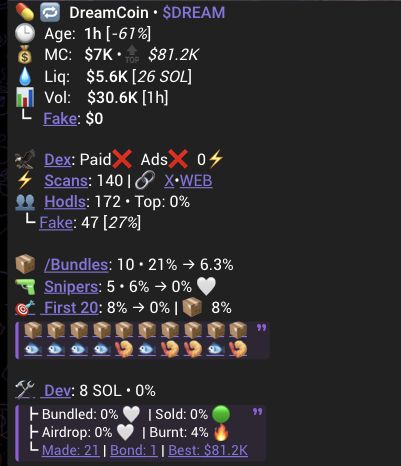
Historical DREAM Scanner result showing Hodls: 172 and holder-context Fake: 47 [27%].
Scanner capture retained from 21 October 2026. Its release identity is unverified. These are historical displayed values, not a live token result.
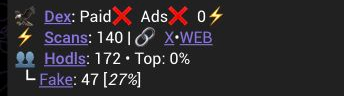
Unchanged holder-context crop from the result above, including Hodls: 172 and Fake: 47 [27%].
The same result's holder fields. The Fake dollar value near Vol is a separate measurement.

The capture shows Hodls: 172 and Fake: 47 [27%].

47 ÷ 172 × 100 ≈ 27.3%, displayed as 27%.

Read this as: the result reports 47 flagged addresses, a count equivalent to about 27% of its reported 172 holders. The arithmetic explains the displayed percentage; it does not verify the detector records behind this historical capture.

It does not mean those addresses hold 27% of supply, identify 47 people, or prove that the other 125 holders are independent buyers.

Return to your original scan and read Fake with its Hodls value. If the row is absent, continue with the available holder information without assuming zero. For the separate transaction-volume measurement, see Fake Volume.

PreviousScanner field glossaryNextFake Volume

On this page

  1. What it measures
  2. What it cannot tell you
  3. One worked example