Skip to documentation content
Soul Terminal

Documentation

Open Terminal

Start here

  • Introduction
  • Products and features

Soul Terminal

  • Feeds, scans and charts

Soul Scanner

  • Scanner overview
  • Scanner guide
    • Start a scan
    • Alerts and warnings
    • Field glossary
    • Fake Holder
    • Fake Volume
    • Bundles
    • Snipers
    • First 20
    • Group Trading
    • Auto Track
    • Trench Track

Soul Trending

  • Soul Trending
    • Early Trending
    • Whale Trending
    • Trench Trending

Soul Sniper

  • Trade with Sniper
    • Limit and auto orders
    • Tracking-linked orders

Share and get help

  • Community
  • Contact
  • Team

Understand limits

  • Terms
  • Disclaimers
    • Trending disclaimer
  • Privacy policies

Interactive guides

  • Interactive Soul guides
    • Interactive Scanner scan guide
    • Soul Scanner command guide
    • Soul Sniper command guide
    • Soul Trending guides
      • Trending basics: What Trending is
        • Trending basics: Recognize the posts
        • Trending basics: From alert to research
        • Trending basics: Your next step
      • Early Trending: Start with Early Trending
        • Early Trending: Read an entry alert
        • Early Trending: Read updates and rankings
        • Early Trending: Your next step
      • Whale Trending: Read the wallet signals
        • Whale Trending: Wallet and Scan
        • Whale Trending: Read updates
        • Whale Trending: Your next step
      • Trench Trending: Start with Trench Trending
        • Trench Trending: Read the entry fields
        • Trench Trending: Read updates
        • Trench Trending: Your next step

Start here

  • Introduction
  • Products and features

Soul Terminal

  • Feeds, scans and charts

Soul Scanner

  • Scanner overview
  • Scanner guide
    • Start a scan
    • Alerts and warnings
    • Field glossary
    • Fake Holder
    • Fake Volume
    • Bundles
    • Snipers
    • First 20
    • Group Trading
    • Auto Track
    • Trench Track

Soul Trending

  • Soul Trending
    • Early Trending
    • Whale Trending
    • Trench Trending

Soul Sniper

  • Trade with Sniper
    • Limit and auto orders
    • Tracking-linked orders

Share and get help

  • Community
  • Contact
  • Team

Understand limits

  • Terms
  • Disclaimers
    • Trending disclaimer
  • Privacy policies

Interactive guides

  • Interactive Soul guides
    • Interactive Scanner scan guide
    • Soul Scanner command guide
    • Soul Sniper command guide
    • Soul Trending guides
      • Trending basics: What Trending is
        • Trending basics: Recognize the posts
        • Trending basics: From alert to research
        • Trending basics: Your next step
      • Early Trending: Start with Early Trending
        • Early Trending: Read an entry alert
        • Early Trending: Read updates and rankings
        • Early Trending: Your next step
      • Whale Trending: Read the wallet signals
        • Whale Trending: Wallet and Scan
        • Whale Trending: Read updates
        • Whale Trending: Your next step
      • Trench Trending: Start with Trench Trending
        • Trench Trending: Read the entry fields
        • Trench Trending: Read updates
        • Trench Trending: Your next step
←HomeChoose guide
Step 3 of 4
Whale Trending
Read the wallet signals
Wallet and Scan
Read updates
Your next step
Next up: Your next step

Whale Trending: Read updates

Whale Trending lesson

Verify an update against its Entry

An update describes an alert sequence. It is not a statement about a personal return.

Match the reference

Confirm that the Entry Signal and update point to the same token and the relevant time reference before treating them as one sequence.

If the Entry is missing

Do not infer it. Recheck the token identity and timestamp, then use Scan for current research before returning to the update.

Leaderboard and paid-placement caveat

Paid placements can be inserted separately in a leaderboard. A ranking does not independently verify an Entry Signal, a token match, or a personal return.
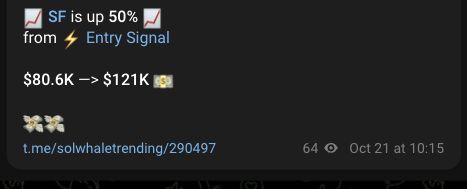
Historical Whale Trending update exampleOpen full-size historical image ↗
Historical update example. Open the full-size image to compare its visible references with the corresponding Entry.
Next up: Your next step
Step 3 of 4