Soul Terminal
Follow live token feeds, then open a token's scan and chart without leaving Terminal. Switch between Early, Whale and Trench as your research changes, and use the field explanations to understand what you are seeing. Premium features depend on the access available to your signed-in account.
Use it on desktop, tablet or mobile. The main flow is the same: **choose a feed, check a token, read its scan and chart, then return to the feed**.
## Start with a feed
1. [Open Soul Terminal](https://soulterminal.ai/?utm_source=soulterminal_docs&utm_medium=website&utm_campaign=docs&utm_content=all_docs).
2. Choose **Early + Whale**, **Early Trending** or **Whale Trending**. Choose **Trench** when it is available in your feed chooser. On a phone, tap the current feed name to open the chooser. At narrower tablet widths, Early and Whale can use shorter labels.
3. Scroll through the token rows. New alerts and changing values arrive while the feed is open. Check the name and feed badge before opening a row, since the list can change.
4. Read the row's market cap and activity fields. If a label is unfamiliar, open its tooltip before comparing tokens.
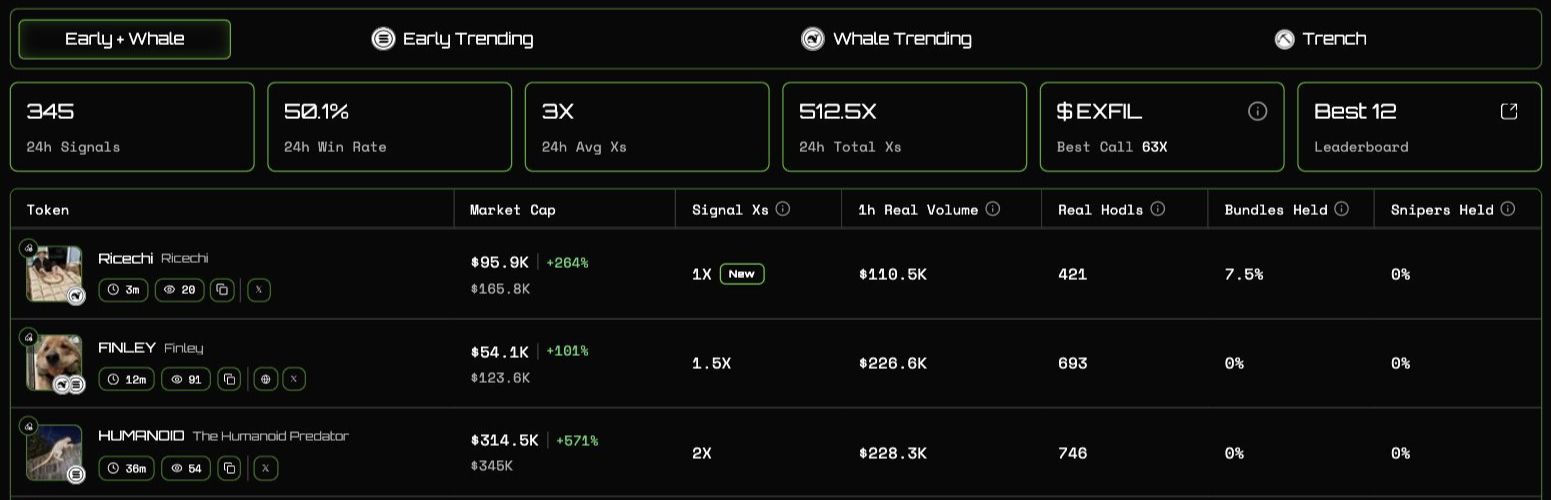 Find a token worth a closer look. Check its feed badge and row before opening the scan and chart.
### Switch feeds
- **Early + Whale:** see both feed types together. The badges tell you where a token appeared.
- **Early Trending:** focus on early-token activity.
- **Whale Trending:** follow tokens surfaced by qualifying wallet buys.
- **Trench:** follow bursts of token activity.
Switching feeds changes the list you are browsing. If Trench is absent from the chooser, continue with an available feed. Its absence does not mean there are no Trench alerts. Use the [Trending guide](/user-guides/trending) for the differences between signals and their updates.
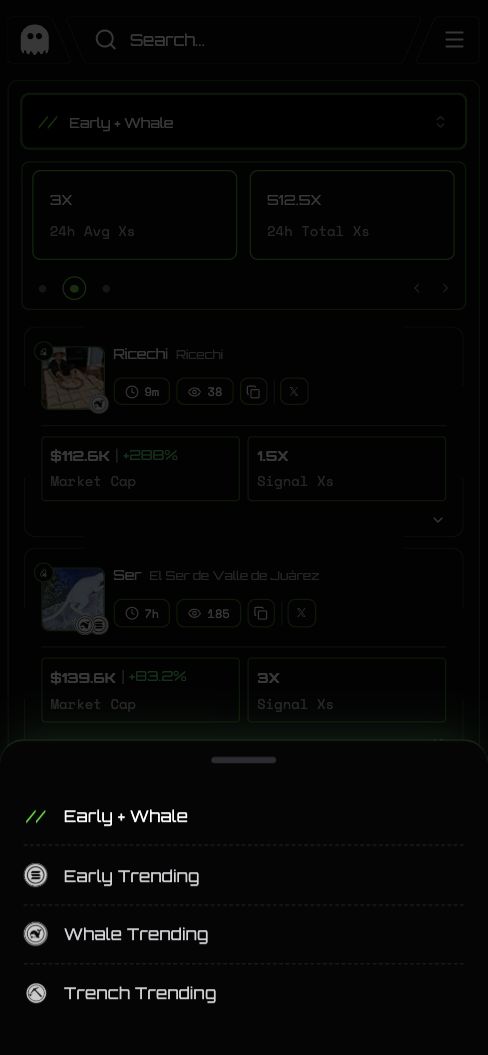 On mobile, tap the feed name, choose a feed, then scroll its token list.
## If the feed is empty or stops updating
Check what the page is showing before you refresh:
- **Loading placeholders:** the feed is still loading. Missing rows do not mean there is no token activity.
- **No trending tokens available:** there are no rows in the current view. Check the selected feed, or choose another available feed.
- **A load error:** use **Retry** in the error panel. If it fails again, check your connection and reload the page.
- **Rows are visible but seem stuck:** check your connection, then reload and recheck the selected feed. A still-visible row is not proof that live updates are arriving.
If the problem continues, [contact support](/support/contact#product-support) with the feed name, device, time and visible message. Include a screenshot without private account details. Do not treat a missing or stale value as zero.
## Understand a feed item
Use the information icons and field tooltips to check what a number means. On desktop, hover over the field or focus its information button with the keyboard. On touch screens, tap the field's information control.
For example, **1h Real Volume** explains that the figure covers the last hour and excludes volume classified as synthetic. **Real Hodls** excludes holders classified as synthetic. These are different questions from total volume or total holders.
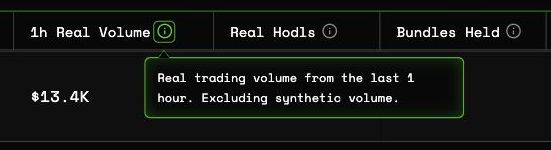 Check what the number includes. This tooltip explains the one-hour window and the excluded synthetic volume.
**Signal Xs** describes a signal's reported multiple. It is not your entry price or your return. A feed appearance is a reason to take a closer look, not a promise that a token is safe.
## Open the token's scan and chart
1. Click or tap the token name in the feed.
2. Check the token name, symbol and address. Similar names can belong to different tokens.
3. Read **Token Info**: entry market cap, ATH and liquidity, followed by volume and holders.
4. Check **Bundles**, **Snipers**, **First 20 Buyers** and **Dev** for the available holder and wallet activity details. Open **See More** or **See Wallets** where you need the breakdown.
5. Compare those findings with the chart. Decide whether to keep researching, monitor the token or return to the feed.
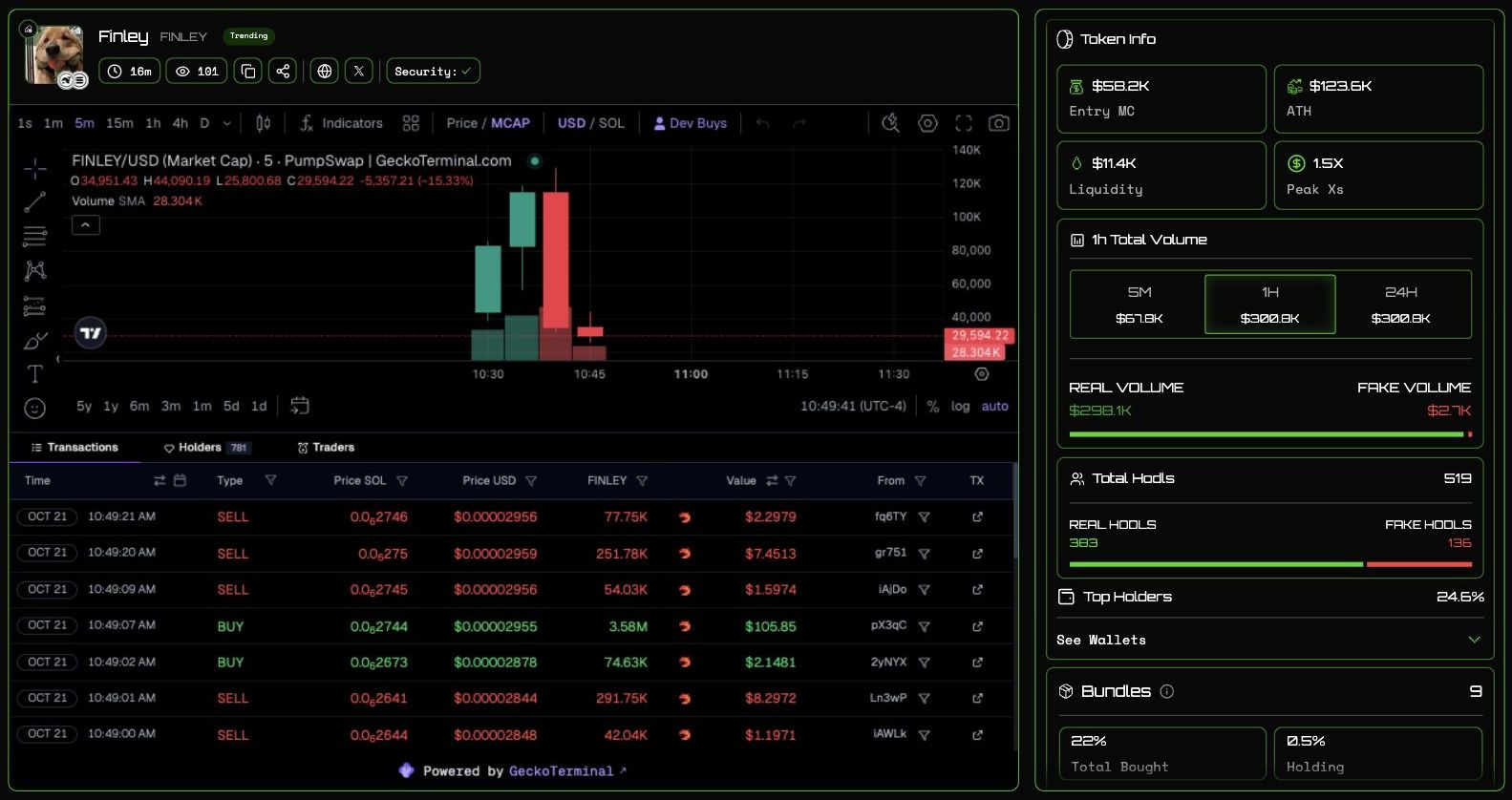 Keep the chart beside the scan. FINLEY is the token shown earlier in the feed; the example values differ between views.
### Use the chart
Check the token and chart mode first. The example shows **MCAP**, so the candles plot market cap. Use the chart's interval controls, such as **5m**, to change how much time each candle covers. Look at the time axis before comparing a move with a feed alert.
If the chart and scan show different values, check the token address, chart mode, selected interval and observation time before comparing them. Market cap and token price are different measures. If the difference remains unexplained, pause the comparison and [contact support](/support/contact#product-support) with both views and their times.
The chart comes from an external provider, so its controls and loading time can vary. A blank or loading chart does not mean the token has no trading activity. Wait for it to load or refresh the page before drawing a conclusion from it.
### Open the field explanations
Hover over an information icon on desktop, or tap a supported field on mobile. The explanation tells you what the field measures and may link to a longer guide.
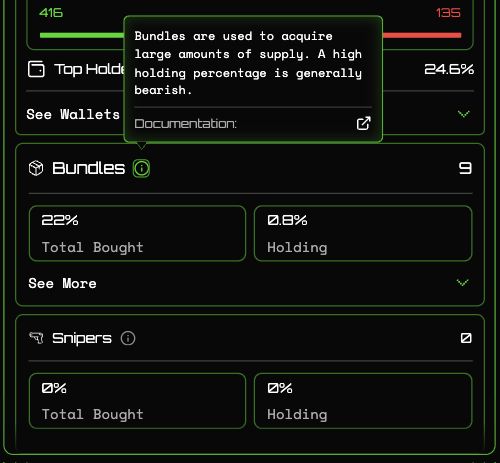 Check what was bought and what is still held. Open the Bundles explanation before comparing the percentages.
For a deeper explanation, use Scanner's [Bundles](/user-guides/soul-scanner/bundles), [Snipers](/user-guides/soul-scanner/snipers) and [First 20](/user-guides/soul-scanner/first-20) guides.
## On tablet and mobile
The layout changes to fit the screen. Scroll to reach the scan fields, tap supported fields for details, and close the detail panel to keep reading. On mobile, **Info** shows the scan and **Transactions** opens the chart with trade activity. These tabs change what you are viewing; they do not place a trade.
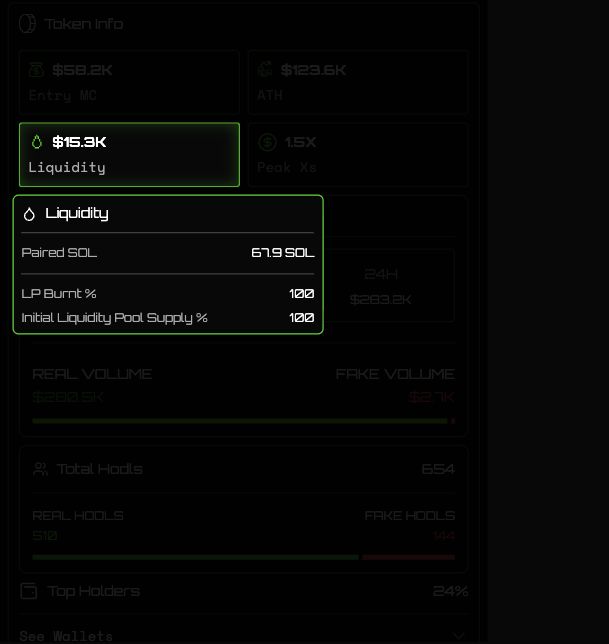 Tap Liquidity to open its details. Close the panel when you are ready to continue through the scan.
## Premium access
Premium provides advanced discovery and audit features when they are available to your account. Sign in with the Telegram account associated with your Premium access. Signing in does not by itself grant access.
If access is missing, check that you used the account associated with your Premium access. [Contact support](/support/contact#product-support) if it still does not appear. Public feeds remain a useful starting point while you check access.
## Return to the feed
Use your browser's Back button, or choose **Trending** in Terminal's navigation. On mobile, open the menu to find Trending. Check the selected feed again before continuing, since a fresh visit can start on the combined feed.
Use the token page to decide whether you want to investigate further, keep watching or leave the token alone. If you decide to trade, continue to [Soul Sniper](/user-guides/soul-sniper) and review its wallet, token and amount controls separately.
[Open Terminal](https://soulterminal.ai/?utm_source=soulterminal_docs&utm_medium=website&utm_campaign=docs&utm_content=all_docs) · [Compare Trending feeds](/user-guides/trending) · [Read scan fields](/user-guides/soul-scanner) · [Get help](/support/contact)
© 2023-Present Soul Systems LLC. All rights reserved.